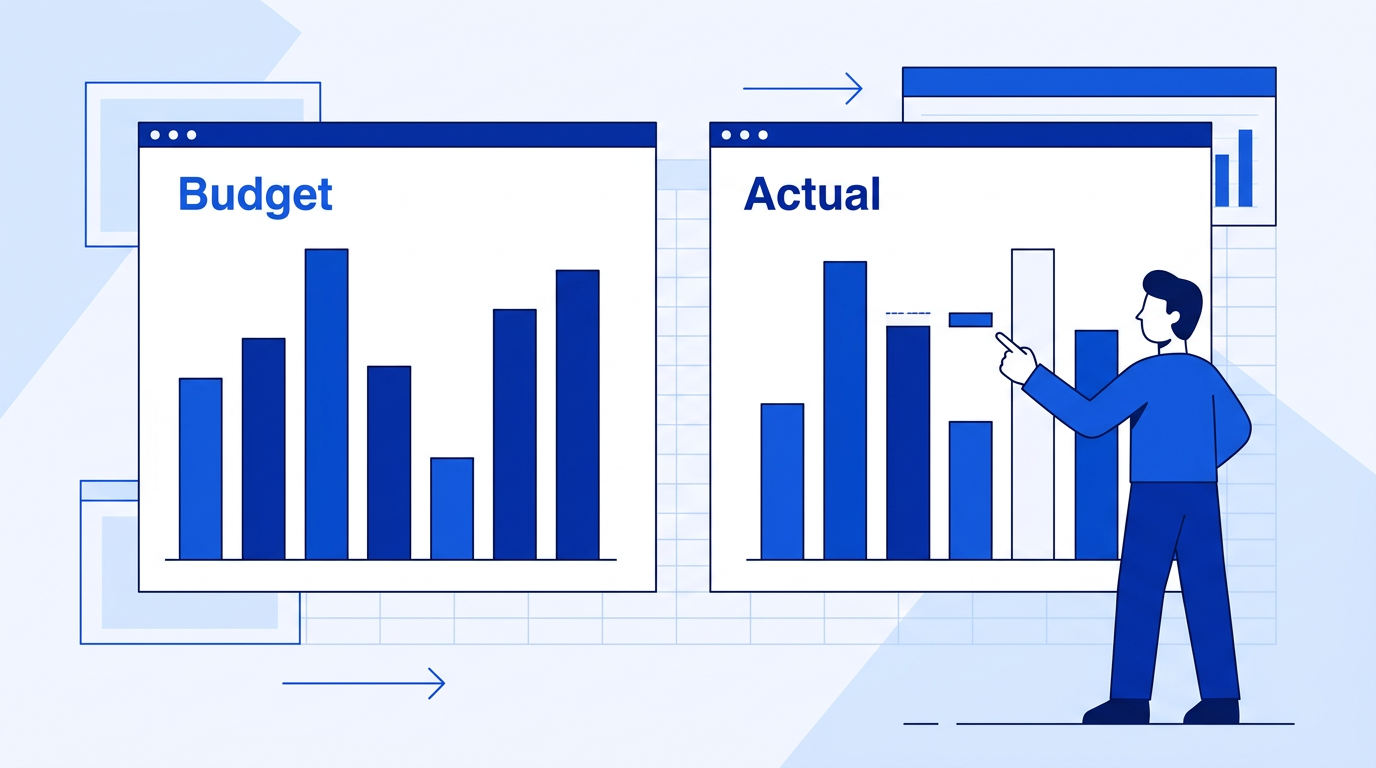
A budget vs. actuals report is the most important financial report most teams never build properly. The idea is simple — compare what you planned to spend and earn against what actually happened — but getting the spreadsheet right so it's useful every month without rebuilding it takes some thought.
This guide shows you how to build one in Excel that works for the whole year, updates with minimal effort, and makes variances obvious at a glance.
The Layout That Works
Set this up with months as columns and line items as rows. Column A is the label. Then for each month you have three columns: Budget, Actual, and Variance. So January takes columns B, C, D. February takes E, F, G. And so on.
This layout lets you scroll right to see the full year and compare any month without switching between sheets.
Your row structure should mirror your chart of accounts or however you categorize income and expenses. Group rows by category — Revenue at the top, then COGS, then operating expense categories — and use SUM rows to subtotal each section.
Calculating Variance
Variance is Actual minus Budget. For revenue lines, a positive variance is good (you made more than planned). For expense lines, a positive variance is bad (you spent more than planned).
=C4-B4
Where C4 is Actual and B4 is Budget. Apply this formula to every line item and subtotal row.
For variance percentage:
=IF(B4=0, 0, (C4-B4)/B4)
Format as percentage. This tells you not just the dollar variance but whether it's material relative to the budget.
Making Variances Obvious with Conditional Formatting
Select all variance columns. Go to Home, Conditional Formatting, New Rule. Use a formula-based rule. For revenue rows: =C4>B4 with green fill (over budget is good). For expense rows: =C4>B4 with red fill (over budget is bad).
Since the direction of "good" flips between revenue and expense rows, apply the formatting separately to each section of your report.
Pulling Actuals Automatically
The part that makes this sustainable is pulling actuals from your transaction data automatically, so you're not manually entering numbers every month. Keep your raw transactions on a separate sheet with columns for date, category, and amount. Then use SUMIFS in your actuals column:
=SUMIFS(Transactions!C:C, Transactions!B:B, A4, Transactions!A:A, ">="&DATE(2026,1,1), Transactions!A:A, "<="&DATE(2026,1,31))
Where A4 is the category label and the date range covers January 2026. Copy this formula across months by adjusting the date range for each column.
Year-to-Date Summary
Add a YTD section to the right of your monthly columns. Budget YTD is the sum of all budget columns through the current month. Actual YTD is the sum of all actual columns. Variance YTD is the difference.
This is often more useful than any single month — one bad month looks alarming, but YTD tells you whether you're actually off track for the year.
The Easy Way: Using SheetXAI in Excel
Try this yourself — free for 7 days
SheetXAI installs in your Google Sheet or Excel workbook in about a minute. Paste the prompt below and watch it run.
Example 1: You have your budget and transactions already in the spreadsheet.
"I have a budget table on Sheet 1 and transaction data on Sheet 2. Build a monthly budget vs. actuals report with variance columns, conditional formatting to highlight overages, and a YTD summary section."
SheetXAI reads both sheets, writes the SUMIFS formulas, builds the variance columns, applies the conditional formatting, and adds the YTD section.
Example 2: Your actuals come from your accounting software.
"Pull this year's actuals from QuickBooks and compare them to the budget on Sheet 1. Build a monthly budget vs. actuals report with variance analysis."
SheetXAI pulls the actuals, maps them to your budget categories, and builds the full comparison report.
Try SheetXAI free and see what it builds for you.
Published May 2026. See also: How to Build a Profit and Loss Report in Google Sheets, How to Create a Cash Flow Forecast in Google Sheets, and Google Sheets AI Guide.

