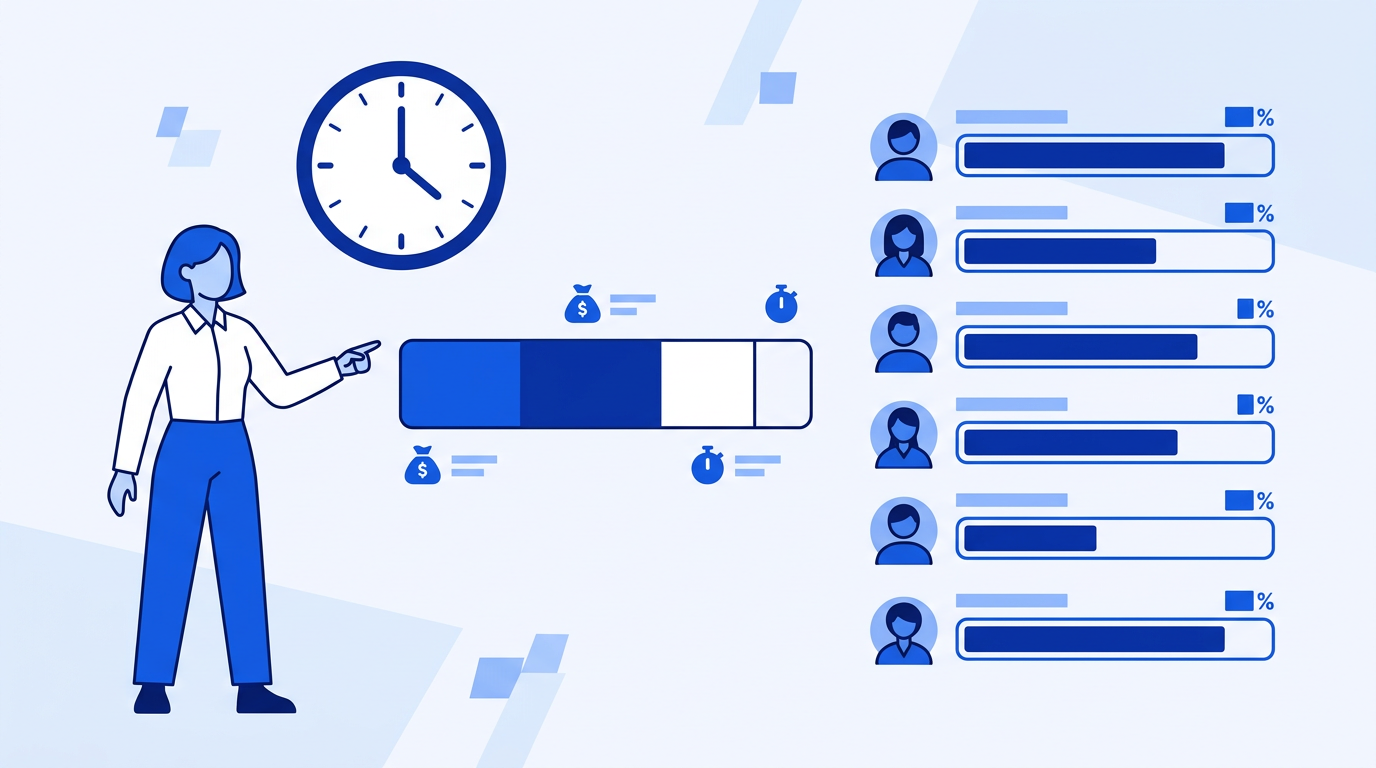
Utilization is the metric that drives profitability at consulting firms. If your consultants are billing 60% of their time and you need 70% to hit margin targets, you have a problem — and you need to know it in real time, not at month end. A utilization tracker in Google Sheets gives you that visibility without expensive professional services software.
Your Time Log
One row per time entry. Columns: consultant name, date, project, client, hours, and billable (Yes/No). Keep a running log — every hour worked goes in here, billable or not.
Calculating Utilization
Total hours worked per consultant per week:
=SUMIFS(TimeLog!E:E, TimeLog!A:A, A2, TimeLog!B:B, ">="&StartDate, TimeLog!B:B, "<="&EndDate)
Billable hours:
=SUMIFS(TimeLog!E:E, TimeLog!A:A, A2, TimeLog!F:F, "Yes", TimeLog!B:B, ">="&StartDate, TimeLog!B:B, "<="&EndDate)
Utilization rate:
=BillableHours/TotalHours
Format as percentage. Your target utilization (typically 70-80% for consulting firms) goes in a separate cell. Apply conditional formatting: green if at or above target, amber within 10% below target, red below.
Client and Project Breakdown
Build a pivot table showing hours and revenue by client. Add Client to Rows, add Hours to Values (SUM), and add Billable to Filters set to Yes. This shows your billable hours distribution across clients — useful for spotting concentration risk and identifying your most time-intensive accounts.
Revenue from Billable Hours
If you track hourly rates, add a Revenue column to your time log:
=IF(F2="Yes", E2*VLOOKUP(A2, ConsultantRates!A:B, 2, FALSE), 0)
Where A2 is consultant name and ConsultantRates maps each consultant to their billable rate. Sum this by period to see revenue generated from billable time.
The Easy Way: Using SheetXAI in Google Sheets
Try this yourself — free for 7 days
SheetXAI installs in your Google Sheet or Excel workbook in about a minute. Paste the prompt below and watch it run.
Example 1: You have time entries already in the spreadsheet.
"I have a time log on Sheet 1 with consultant name, date, project, client, hours, and billable status. Build a utilization tracker showing billable vs. non-billable hours and utilization rate per consultant for this month, with a 70% target and conditional formatting, plus a client breakdown."
SheetXAI reads your time log, calculates utilization, applies the target comparison, and builds the client breakdown.
Example 2: Your time tracking is in a dedicated tool.
"Pull time entries from our time tracking software and build a utilization report showing billable hours, utilization rate, and revenue generated per consultant this month."
SheetXAI connects to your time tracking tool and builds the full utilization report.
Try SheetXAI free and see what it builds for you.
Published May 2026. See also: How to Build a Client Report in Google Sheets, How to Build a KPI Dashboard in Google Sheets, and Google Sheets AI Guide.

