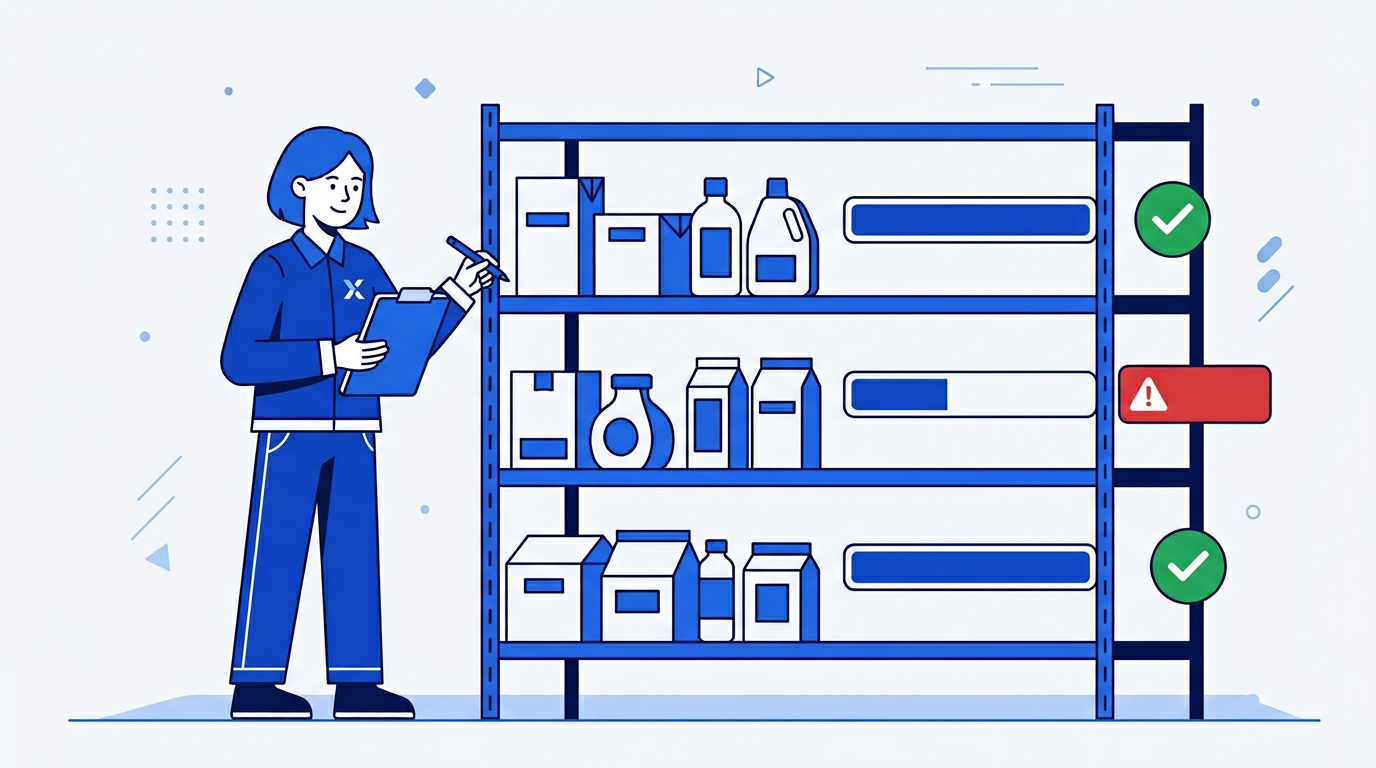
An inventory tracker in Excel works well for small to mid-size operations that don't need a full warehouse management system. Done right, it gives you a live view of what's in stock, what needs reordering, and what's running low — all in a spreadsheet your whole team can use.
Your Inventory Master List
One row per SKU. Columns: SKU, product name, category, unit of measure, current stock, reorder point, reorder quantity, unit cost, supplier, and last updated date.
The reorder point is the stock level that triggers a reorder — typically enough to cover your average lead time from the supplier. If it takes 5 days to get stock and you sell 20 units per day, your reorder point is 100 units.
Flagging Low Stock
Add a Status column:
=IF(E2<=F2, "REORDER", IF(E2<=F2*1.25, "LOW", "OK"))
Where E2 is current stock and F2 is reorder point. This flags items that need immediate reordering (at or below reorder point) and items getting close (within 25% of the reorder point). Apply conditional formatting: red for REORDER, amber for LOW, green for OK.
Calculating Stock Value
Add a Stock Value column:
=E2*H2
Where E2 is current stock and H2 is unit cost. Sum this column to see total inventory value. Use SUMIF to see value by category:
=SUMIF(C:C, "Electronics", I:I)
Tracking Movements
Add a separate Movements sheet with one row per stock movement: date, SKU, type (In, Out, Adjustment), quantity, and notes. Then use SUMIFS on the master list to calculate current stock from movements rather than entering it manually:
=SUMIFS(Movements!D:D, Movements!B:B, A2, Movements!C:C, "In") - SUMIFS(Movements!D:D, Movements!B:B, A2, Movements!C:C, "Out")
This makes your stock levels dynamic — they update every time a movement is logged.
Reorder Report
Add a filtered view or a separate sheet that shows only items with status REORDER, including the reorder quantity and supplier. This becomes your purchase order input sheet — one place to see exactly what needs to be ordered and from whom.
The Easy Way: Using SheetXAI in Excel
Try this yourself — free for 7 days
SheetXAI installs in your Google Sheet or Excel workbook in about a minute. Paste the prompt below and watch it run.
Example 1: You have your product list and stock levels already in the spreadsheet.
"I have an inventory list on Sheet 1 with SKU, product name, current stock, reorder point, and unit cost. Add a status column flagging items that need reordering, calculate stock value by category, and build a reorder report showing only items that need restocking."
SheetXAI reads your data, adds the status logic, calculates values, and builds the reorder report.
Example 2: Your inventory data lives in your ERP or POS system.
"Pull current stock levels from our inventory system and build a tracker showing stock status, items below reorder point, and total inventory value by category."
SheetXAI connects to your system, pulls the data, and builds the full inventory tracker.
Try SheetXAI free and see what it builds for you.
Published May 2026. See also: How to Build a Budget vs. Actuals Report in Excel, How to Build a KPI Dashboard in Google Sheets, and Google Sheets AI Guide.

