The Problem
You have full names in column A and need to extract the first name (left side) or last name (right side), or extract a middle portion of text like an area code from a phone number.
The Easy Way: Use SheetXAI
If you don't want to mess with formulas, the fastest way to do this is simply by asking.
With SheetXAI, you can open the sidebar and type:
Extract the first 5 characters from the text in A2.
SheetXAI will instantly write the formula or script for you and fill the cells. It handles the syntax so you can focus on the result.
Try this yourself — free for 7 days
SheetXAI installs in your Google Sheet or Excel workbook in about a minute. Paste the prompt below and watch it run.
The Manual Way: The Formulas You Need
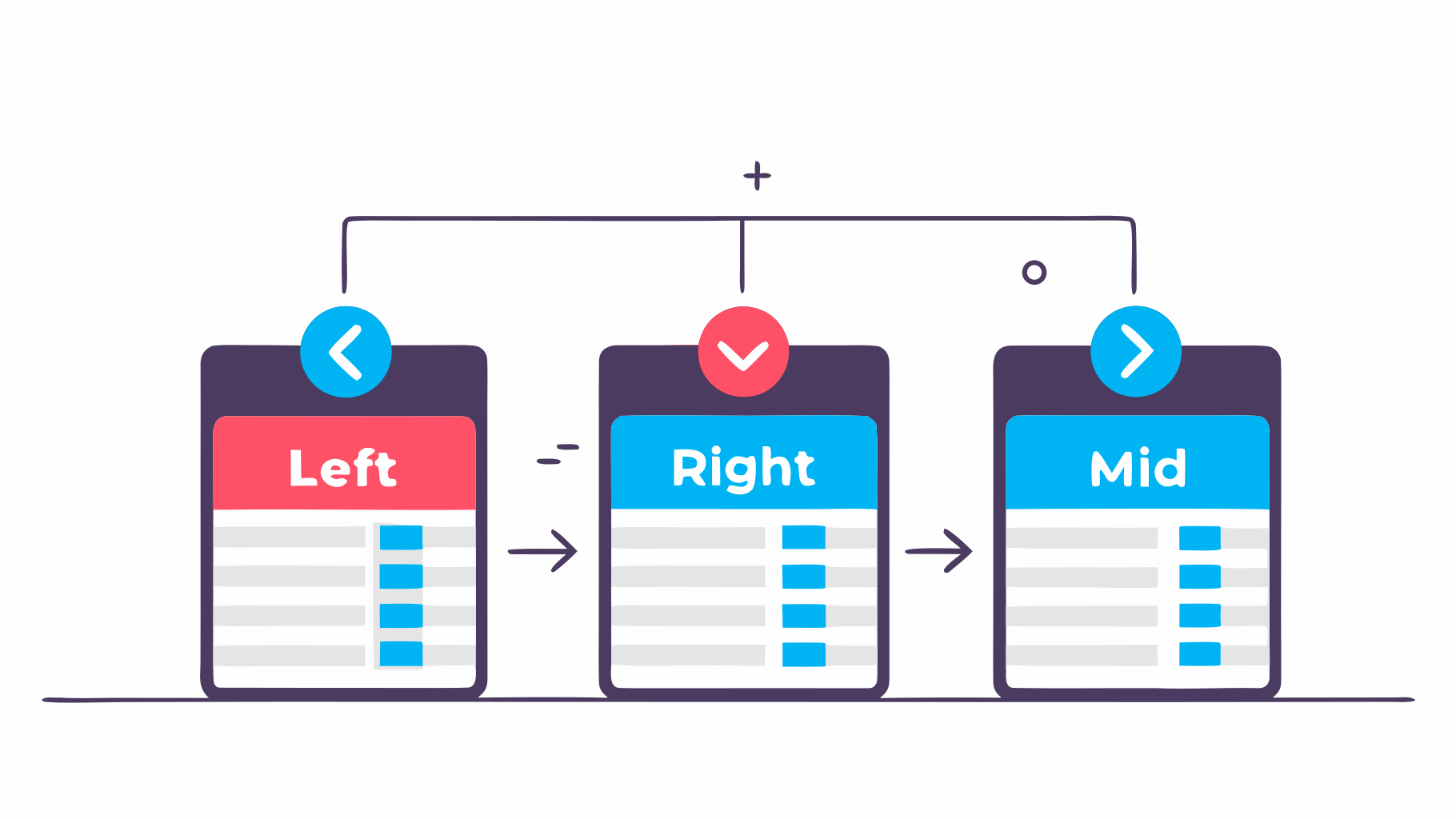
To do this manually, you need to use: LEFT, RIGHT, or MID.
1. LEFT
Returns a specified number of characters from the start (left side) of a text string.
Syntax: =LEFT(text, [num_chars])
- text: The text string you want to extract from.
- [num_chars]: The number of characters to extract from the left (optional, defaults to 1).
Example: Extract first 5 characters: LEFT('Hello World', 5) returns 'Hello'.
2. RIGHT
Returns a specified number of characters from the end (right side) of a text string.
Syntax: =RIGHT(text, [num_chars])
- text: The text string you want to extract from.
- [num_chars]: The number of characters to extract from the right (optional, defaults to 1).
Example: Extract last 5 characters: RIGHT('Hello World', 5) returns 'World'.
3. MID
Returns a specified number of characters from the middle of a text string, starting at a specific position.
Syntax: =MID(text, start_num, num_chars)
- text: The text string you want to extract from.
- start_num: The position of the first character you want to extract (1 = first character).
- num_chars: The number of characters to extract.
Example: Extract 5 characters starting at position 7: MID('Hello World', 7, 5) returns 'World'.
Understanding the Logic
- LEFT: Extracts from the beginning. Use when you know how many characters from the start you need.
- RIGHT: Extracts from the end. Use when you know how many characters from the end you need.
- MID: Extracts from the middle. Use when you need text starting at a specific position.
Common combinations:
- Use FIND to locate a position, then use MID to extract text after that position
- Use LEFT and RIGHT together to extract first and last names
- Combine with LEN to extract dynamic amounts based on text length
The Final Formula:
=LEFT(A2, 5)
Conclusion
Now you know the "classic" way to solve this using formulas. It's a great skill to have.
But for those times when you just want the job done without the mental math, SheetXAI is there to help.
Related Guides
- FIND and SEARCH in Google Sheets - Locate text positions before extracting
- CONCATENATE in Google Sheets - Combine text strings
- How to Separate Names in Google Sheets - Extract first and last names
- Google Sheets AI Guide - Learn how AI can automate your Google Sheets workflows
- AI Spreadsheet Tools - Discover how AI transforms spreadsheet work

