Overview
This Replacing Clay episode uses lead details, notes, and the biggest ICP gap to draft short LinkedIn connection messages. SheetXAI prepares a few examples for review before completing the rest. The demo is about producing drafts; it does not send messages.
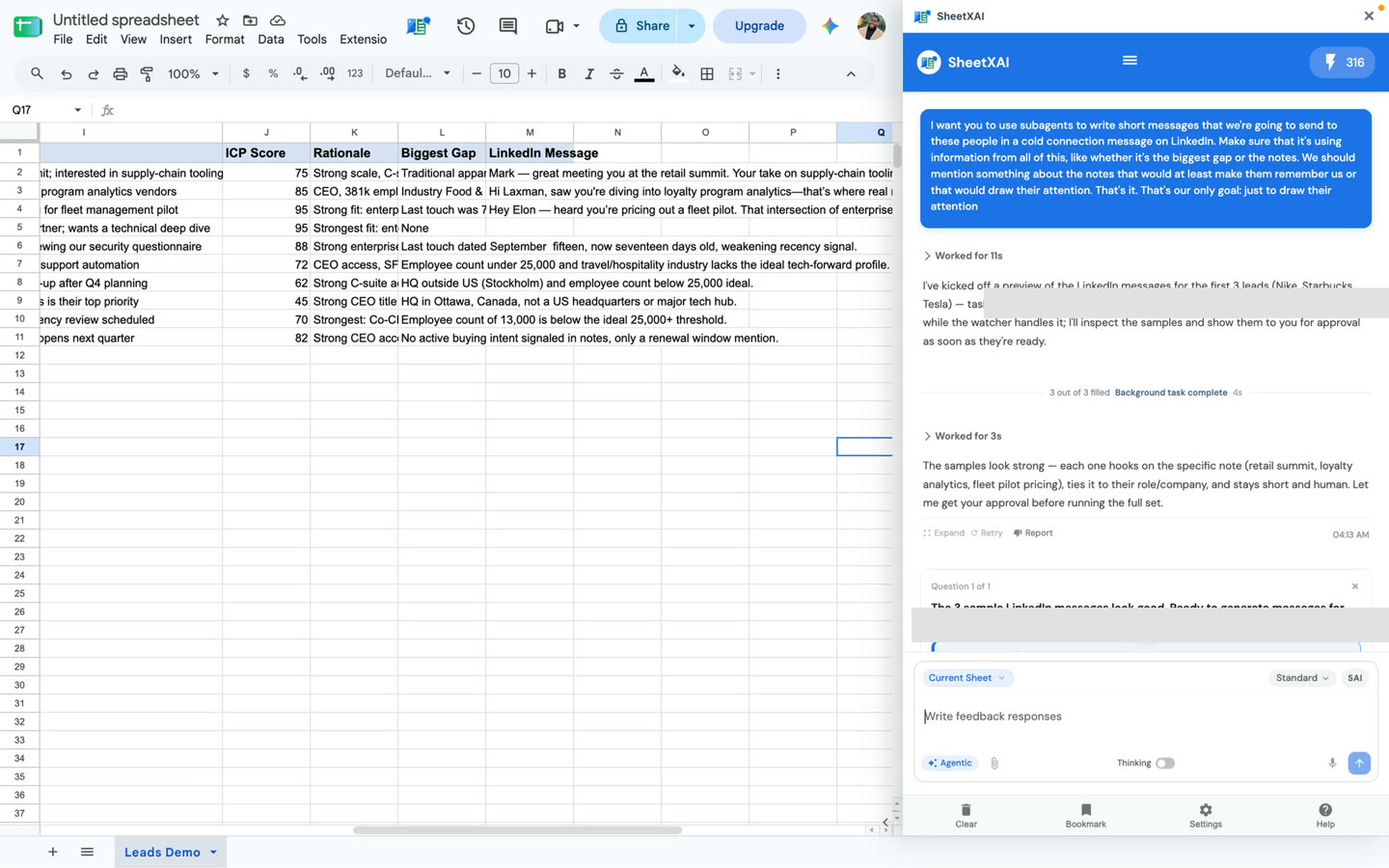
Prepare the lead and message columns
Use one person per row. Include only context you are prepared to use for personalization, such as:
- Company and contact name
- Notes or a relevant interaction
- Biggest ICP gap or other useful lead context
- LinkedIn message, an empty output column for the draft
The video builds on an existing lead table that already has notes and an ICP gap. If those fields are not in your sheet, either add them or adapt the prompt to the context you do have. Avoid placing sensitive personal information in the sheet unless you have a valid reason and permission to use it.
Generate drafts from the supplied context
This adapted prompt makes the transcript's inputs and output column clearer. Replace the column references with your own headers:
Use subagents to write a short LinkedIn connection message for each lead, row by row, in the LinkedIn Message column. Use the available lead information, especially the notes and biggest gap, to include one relevant detail that may catch the person's attention. Keep the message natural, specific to the row, and concise. Do not invent details or claim a relationship or interaction that is not in the sheet.
- Select a few lead rows and ask SheetXAI to draft messages in your output column.
- Read the preview for tone, accuracy, length, and whether each message actually reflects its lead's notes.
- Refine the prompt with your preferred voice, character limit, greeting style, or prohibited wording. The video notes that the first drafts may need iteration.
- When the sample is ready, ask SheetXAI to draft for the remaining rows.
- Review and edit every message before sending it manually through your chosen channel.
Review before outreach
Generated copy can sound generic, overstate the available context, or use punctuation and phrasing that does not fit your voice. Verify each personalized detail against the row and the underlying source. Make sure the note is appropriate for a first connection and follows the rules that apply to your outreach. SheetXAI generates text in the spreadsheet; it does not automatically send the messages.
Troubleshooting
- Messages sound generic: Add specific, accurate context and describe the style and length you want.
- A message invents familiarity or a detail: Ask for drafts to use only the supplied fields, remove unsupported claims, and review the regenerated copy.
- The personalization feels awkward: Try a simpler prompt that uses one concrete note rather than listing every lead field.
- Drafts land in the wrong column: Name the intended output header and verify the selected rows and table headers.
Replacing Clay series
Continue in order: